DeBox User Guide
What Can DeBox Do For Me?
DeBox is an all-in-one Web3 community management tool designed to establish a trustworthy data ecosystem. By logging in with a Web3 wallet, you can engage in private chats, small group chats, and Club chats, post updates, view everyone’s updates, and see on-chain updates from those you follow.
- Feel free to join the DeBox technical discussion group: Click to Join
- To submit feedback, open 【My】, select 【Settings】 in the upper-right corner, and then select 【Feedback】.
What NFTs Has DeBox Officially Issued?
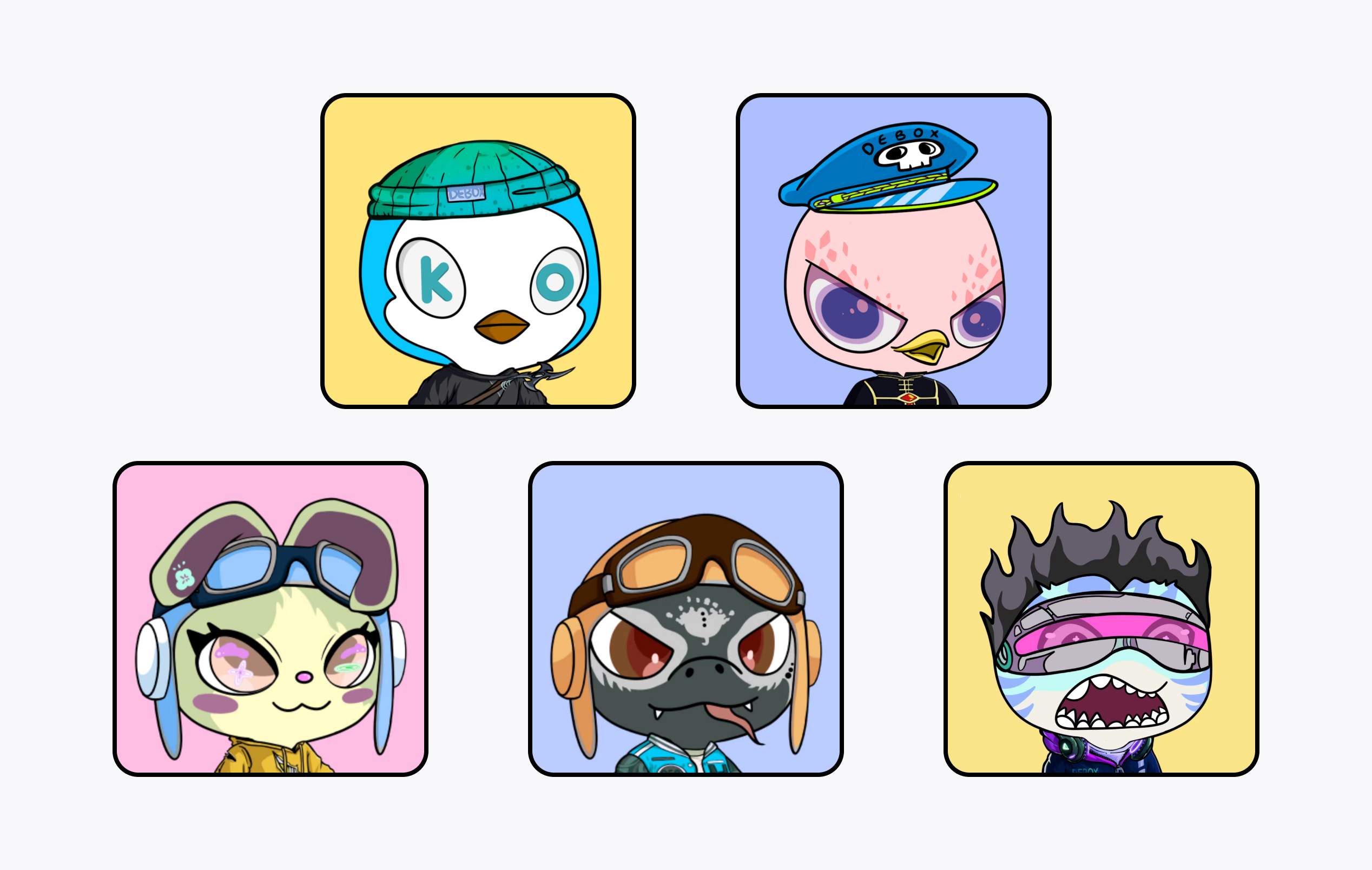
DeBox Guardians Penguin (DGP)
Nickname: Penguin
Penguins are OGs with significant governance rights and influence in the community.
DeBox Guardians Eagle (DGE)
Nickname: Eagle
Eagles are enforcers who oversee and manage the community to ensure members follow the rules and guidelines.
DeBox Guardians Rabbit (DGR)
Nickname: Rabbit
Rabbits are builders who drive community development, often serving as developers.
DeBox Guardians Cobra (DGC)
Nickname: Cobra
Cobras represent the foundation, driving community growth and governance, enhancing users' premium Web3 social experience.
DeBox Guardians Shark (DGS)
Nickname: Shark
Sharks are pioneers, brave and powerful. They explore the boundaries of DeBox and enhance the robustness of the entire DeBox ecosystem.
How to Log into DeBox?
DeBox supports two wallet login methods: use a local wallet 【Recommended】 or connect an external wallet app.
Create a Wallet if You Don’t Have One
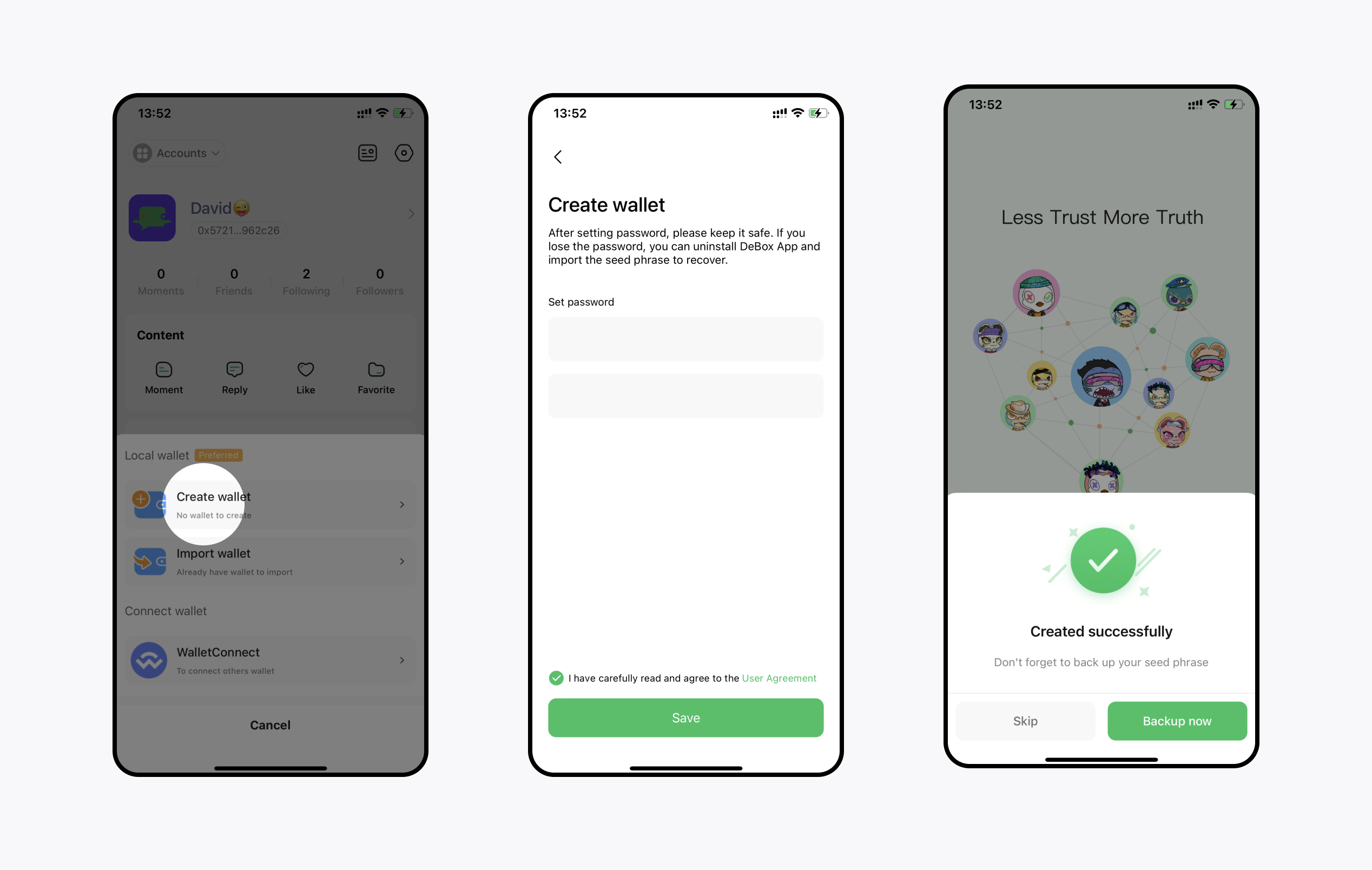
In the upper-left corner of the App, select 【Accounts】 → 【Add】 → 【Create Wallet】. Set a password, finish creating the wallet, and back up the seed phrase. DeBox servers do not store your private key. Keep the seed phrase and private key secure to protect access to your assets.
Import an Existing Wallet
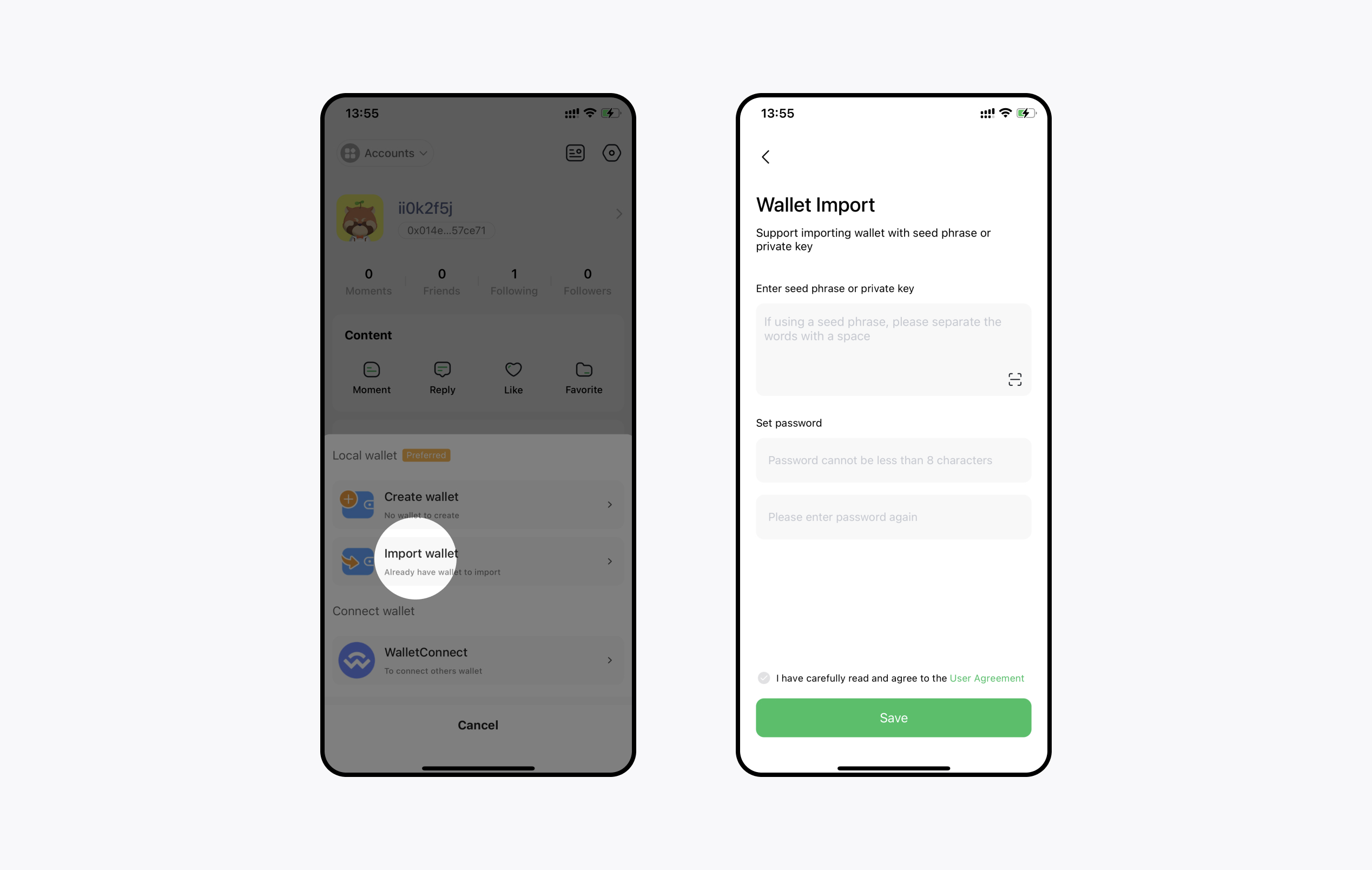
In the upper-left corner of the App, select 【Add Wallet】 → 【Import Wallet】. Enter the private key or seed phrase, set a password, and then select 【Import】.
If You Don’t Want to Import a Private Key
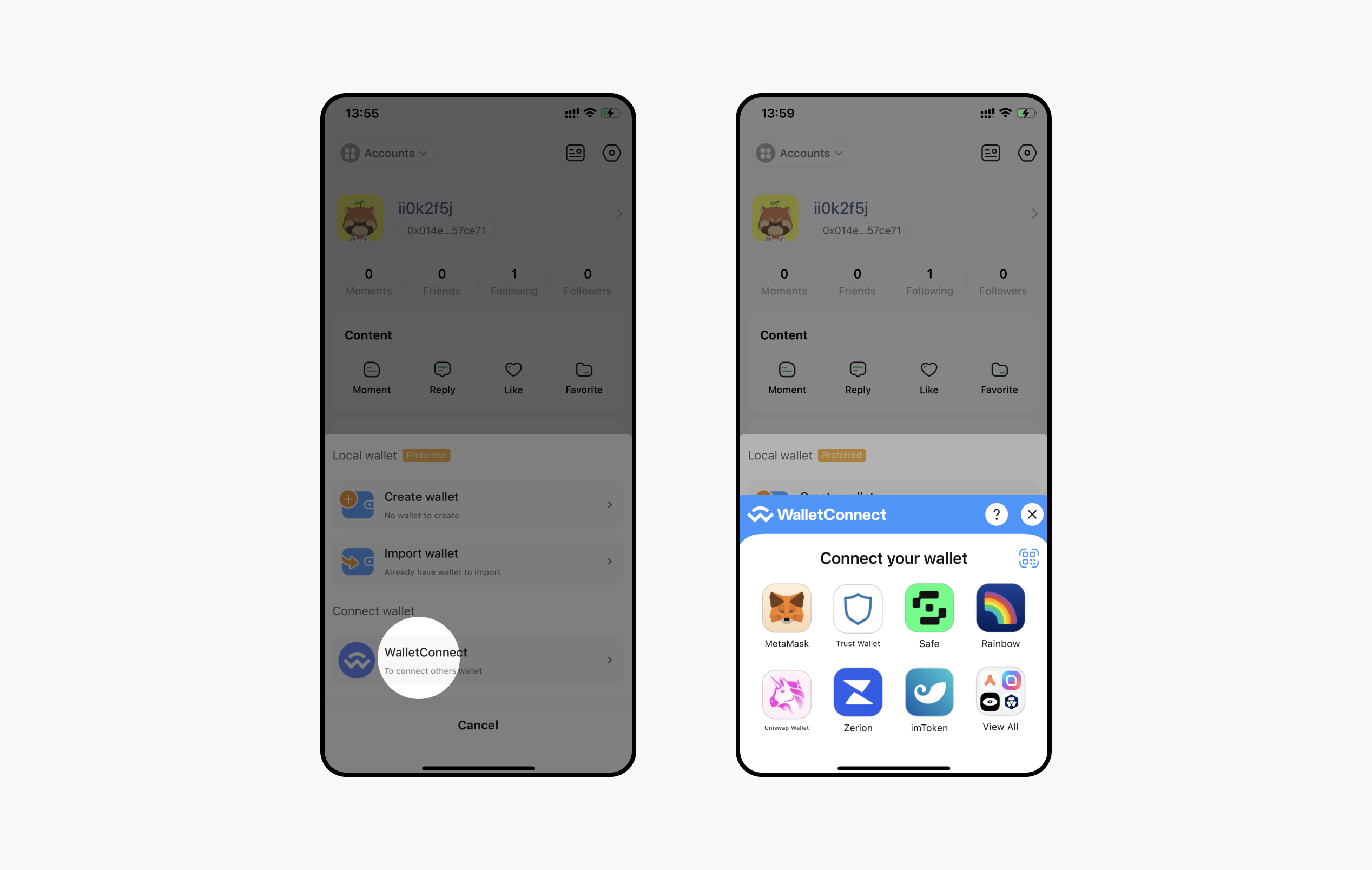
In the upper-left corner of the App, select 【Add Wallet】 and choose WalletConnect or TokenPocket. Approve the connection in the wallet app when prompted. This process requires network access. If the wallet app does not open or authorization fails, check your network connection or use a local wallet instead.
Profile Avatar and Nickname Settings
How to Set Your NFT as Your Avatar?
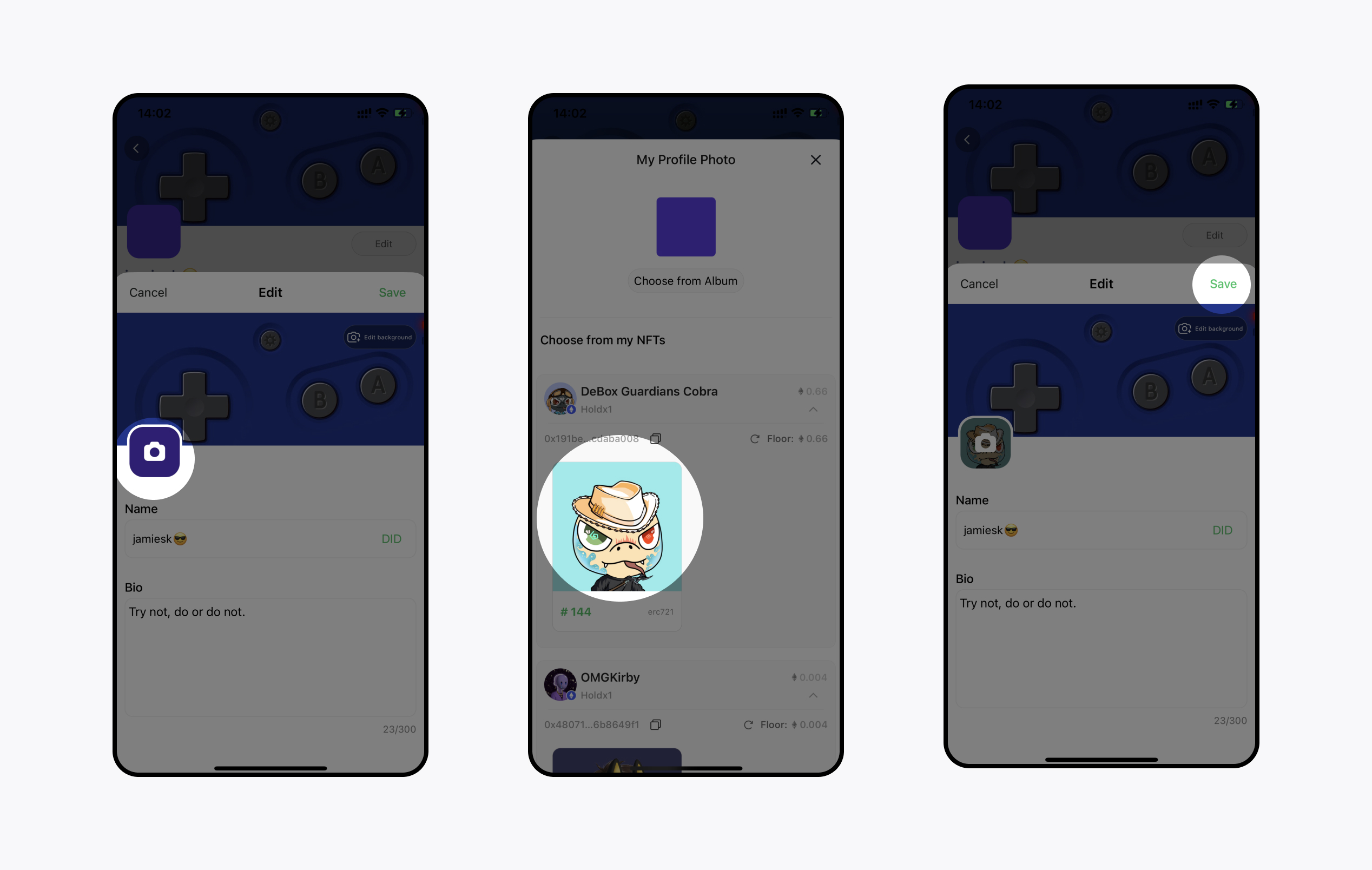
Open 【Personal Profile】 → 【Edit】, select the avatar, choose an NFT you own, and then select 【Save】.
How to Set Your Domain Name as a Nickname?
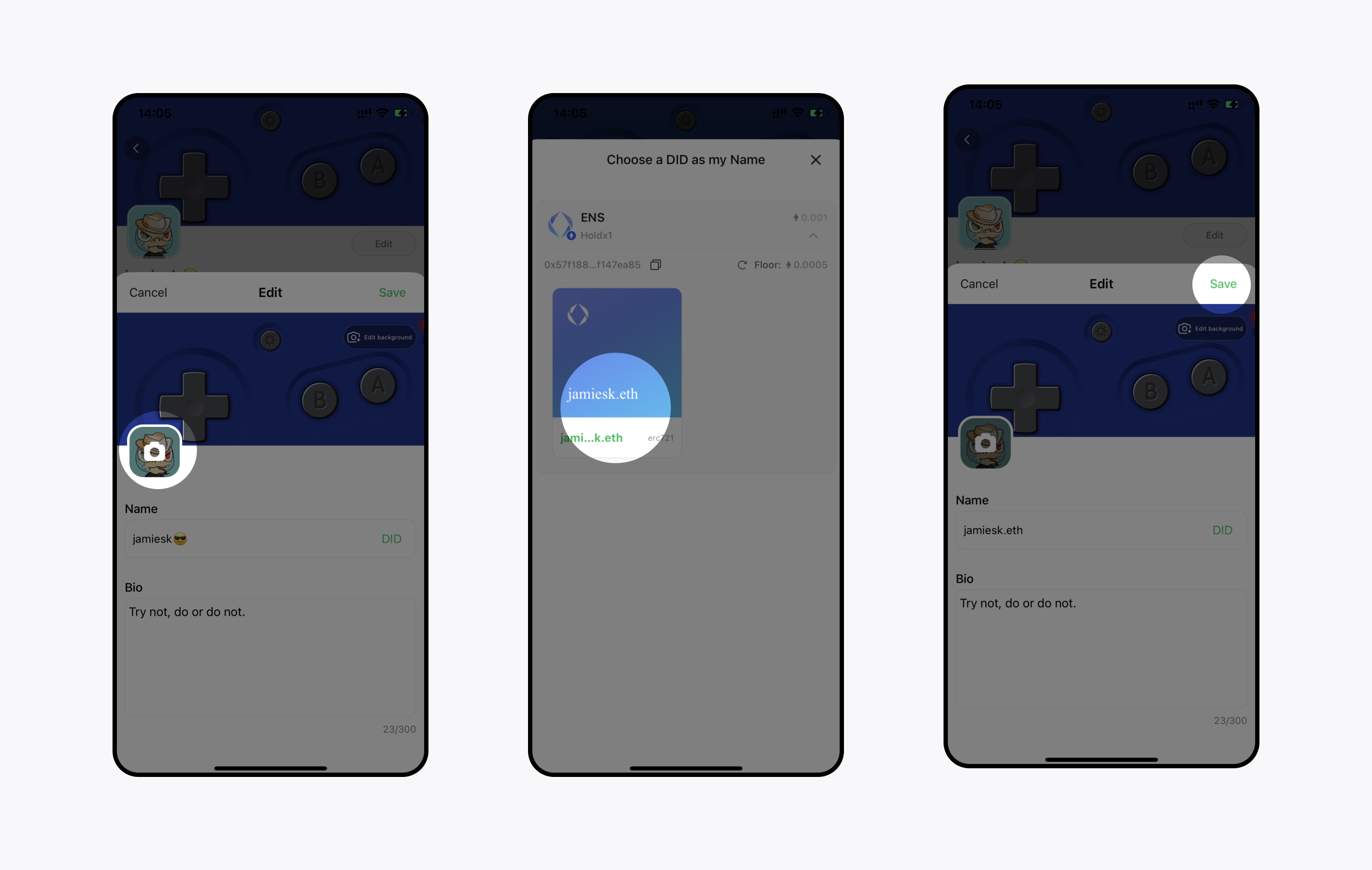
Open 【Personal Profile】 → 【Edit】 → 【DID】, choose the DID you want to use, and then select 【Save】.
How Do I Send Private Messages to My Friends?
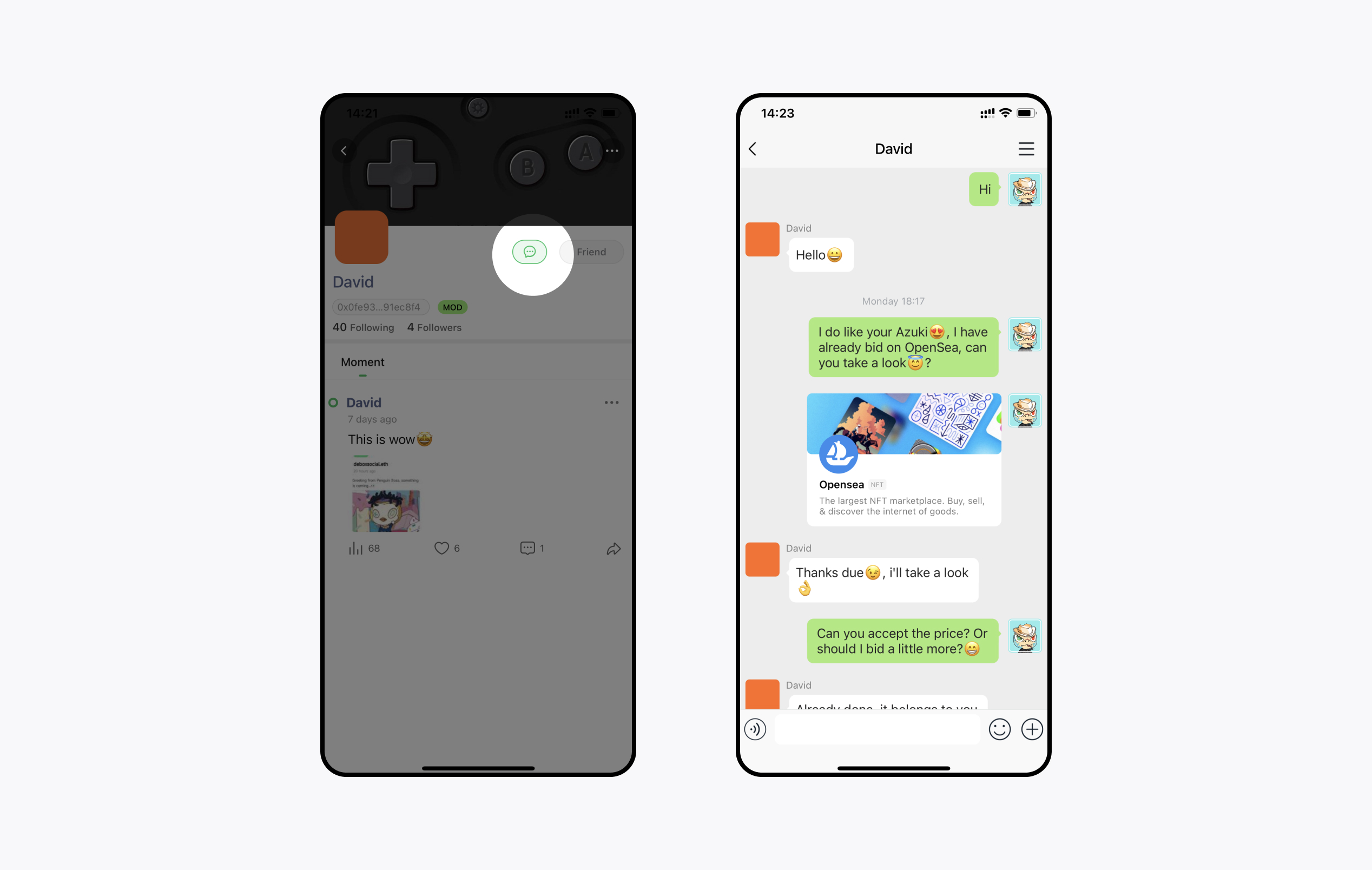
Open the other user's profile and select the 【Chat】 button next to the Follow button. If you cannot start a chat, that user has not allowed you to send private messages. To change who can message you, go to 【My】 → 【Settings】 → 【Privacy】 → 【Private Message Permissions】. The default setting is 【Only people I follow can message me】. You can also choose 【Anyone can message me】 or 【No one can message me】.
How Do I Create a Group?
A small group is a group chat for up to 500 people. You can invite multiple friends to chat together, or find an activity in the Events section and join its group for real-time discussion.
How to Create?
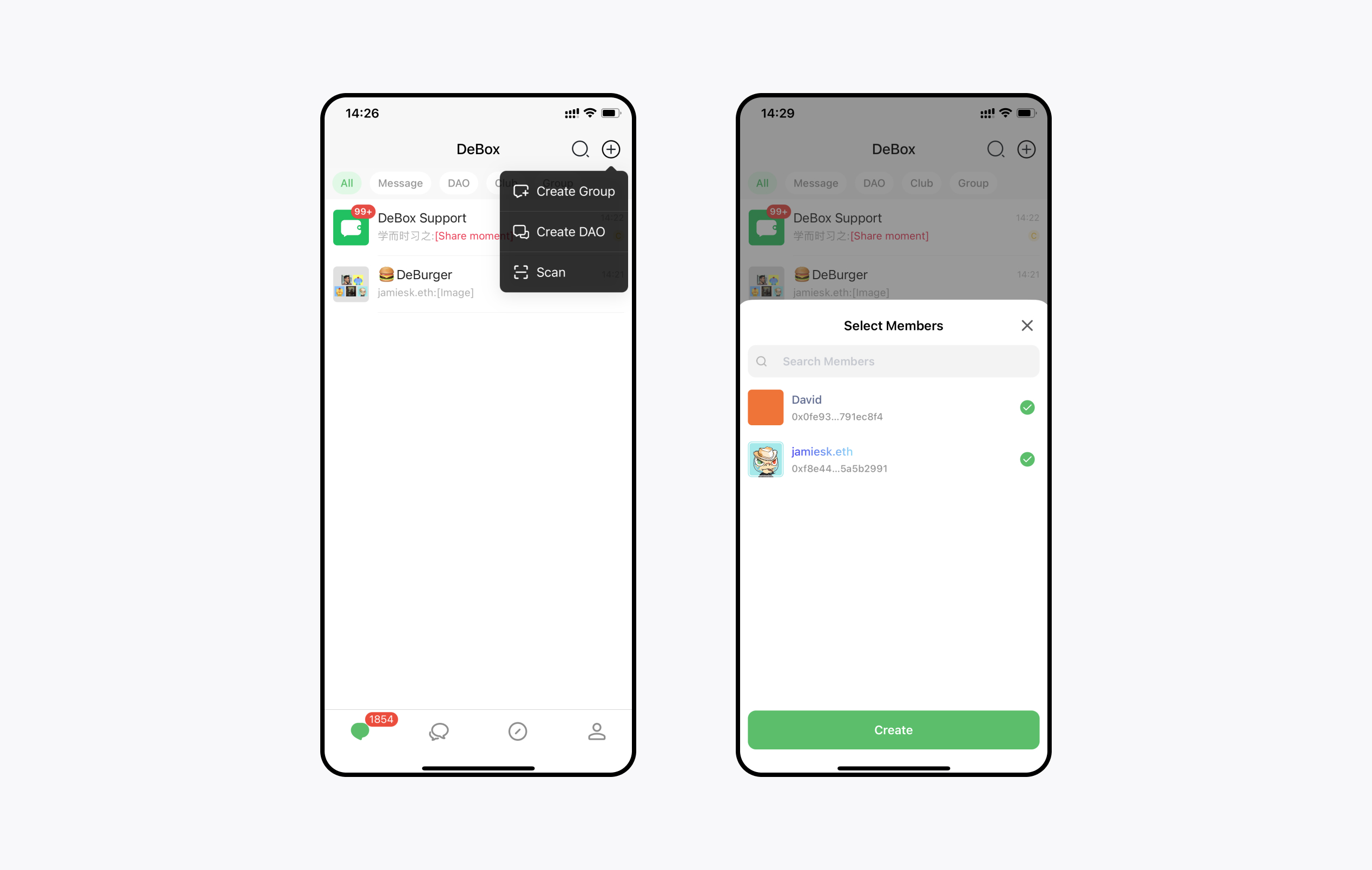
Open 【Chat】 from the bottom navigation, select 【+】 in the upper-right corner, and then select 【Create Small Group】 → 【Friends】 → 【Create Now】. To use Club features, first create a small group and then upgrade it from the group's chat settings as described in the next section.
How Do I Upgrade to or Join a Club?
A Club is a community group upgraded from a small group, with owners, administrators, and group tools. Clubs cannot currently be created directly; an existing small group must be upgraded.
Upgrade a Small Group to a Club
- Open the small group to upgrade and select the Chat Settings icon in the upper-right corner.
- Select Upgrade to Club in Chat Settings and follow the current on-screen instructions.
The Step 1 screenshot uses the Chinese app interface.
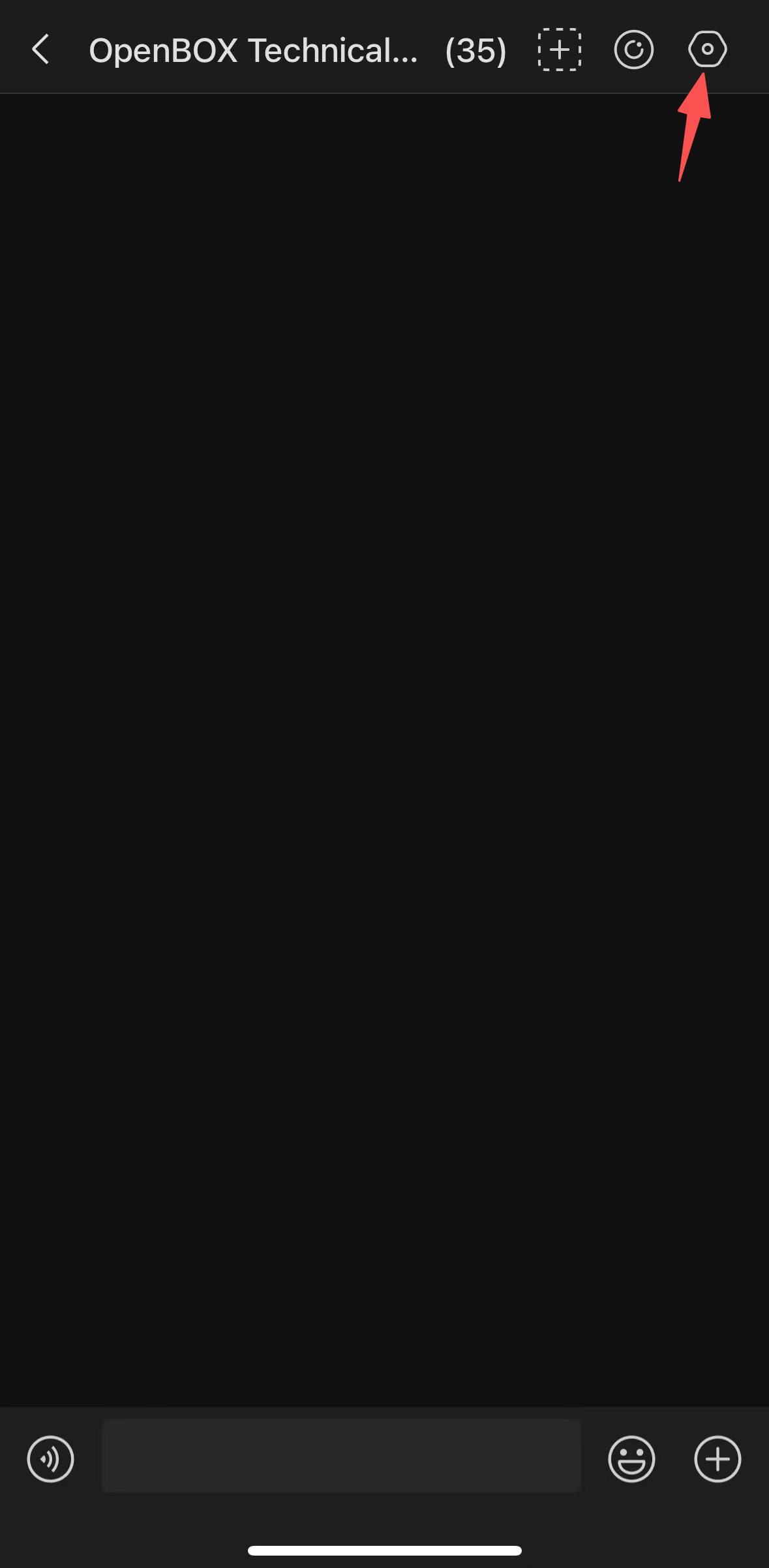
Step 1: Open the small group and select Chat Settings in the upper-right corner.
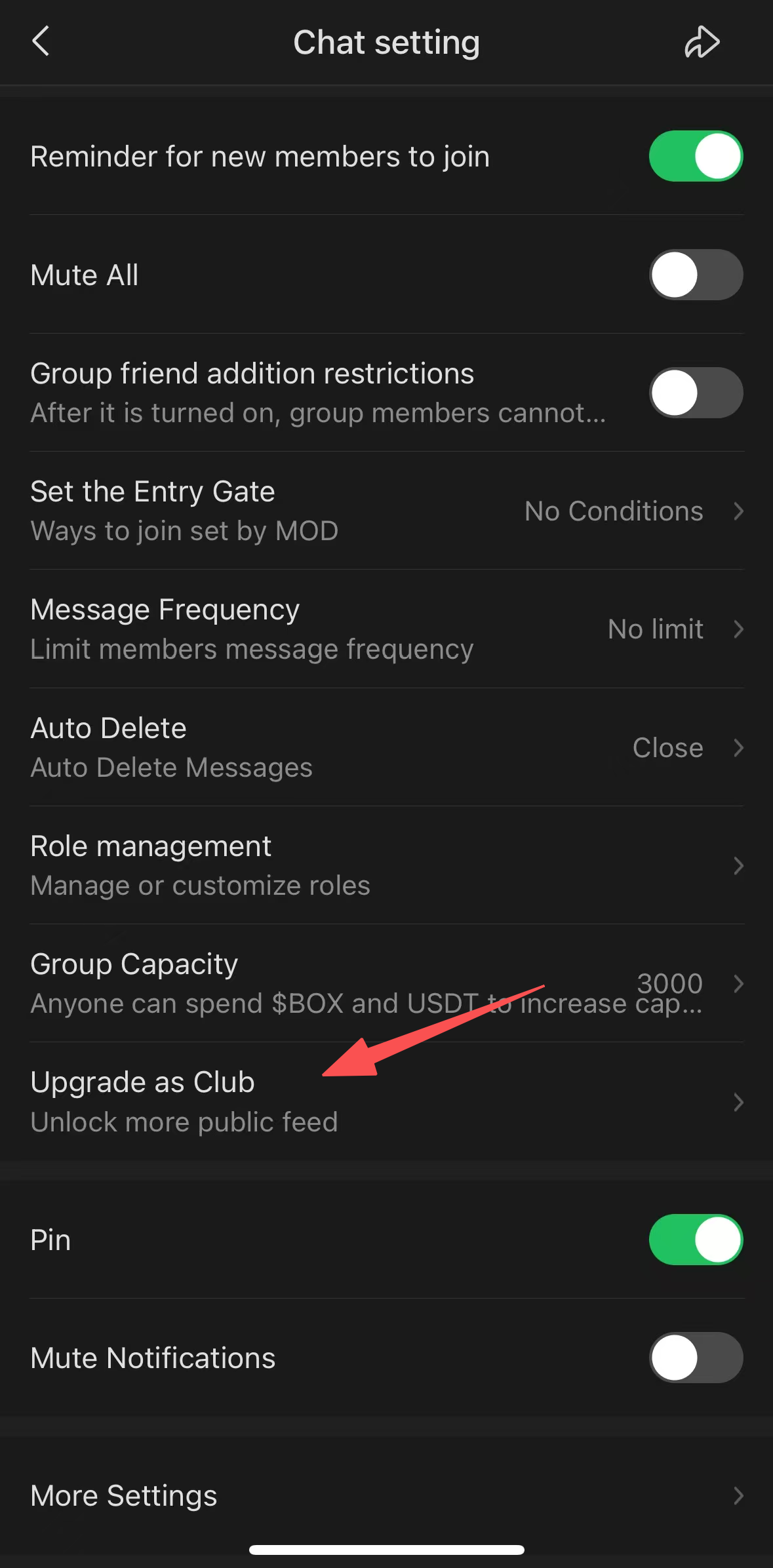
Step 2: Select Upgrade to Club in Chat Settings.
Join a Club
- Open My and select the Settings icon in the upper-right corner.
- Enable Web3 Pro on the Settings page.
- Select Community in the bottom navigation, open the Club section, choose a Club, and follow the on-screen instructions to join.
Joining requirements can vary by Club. Use the conditions currently shown on the target Club page.
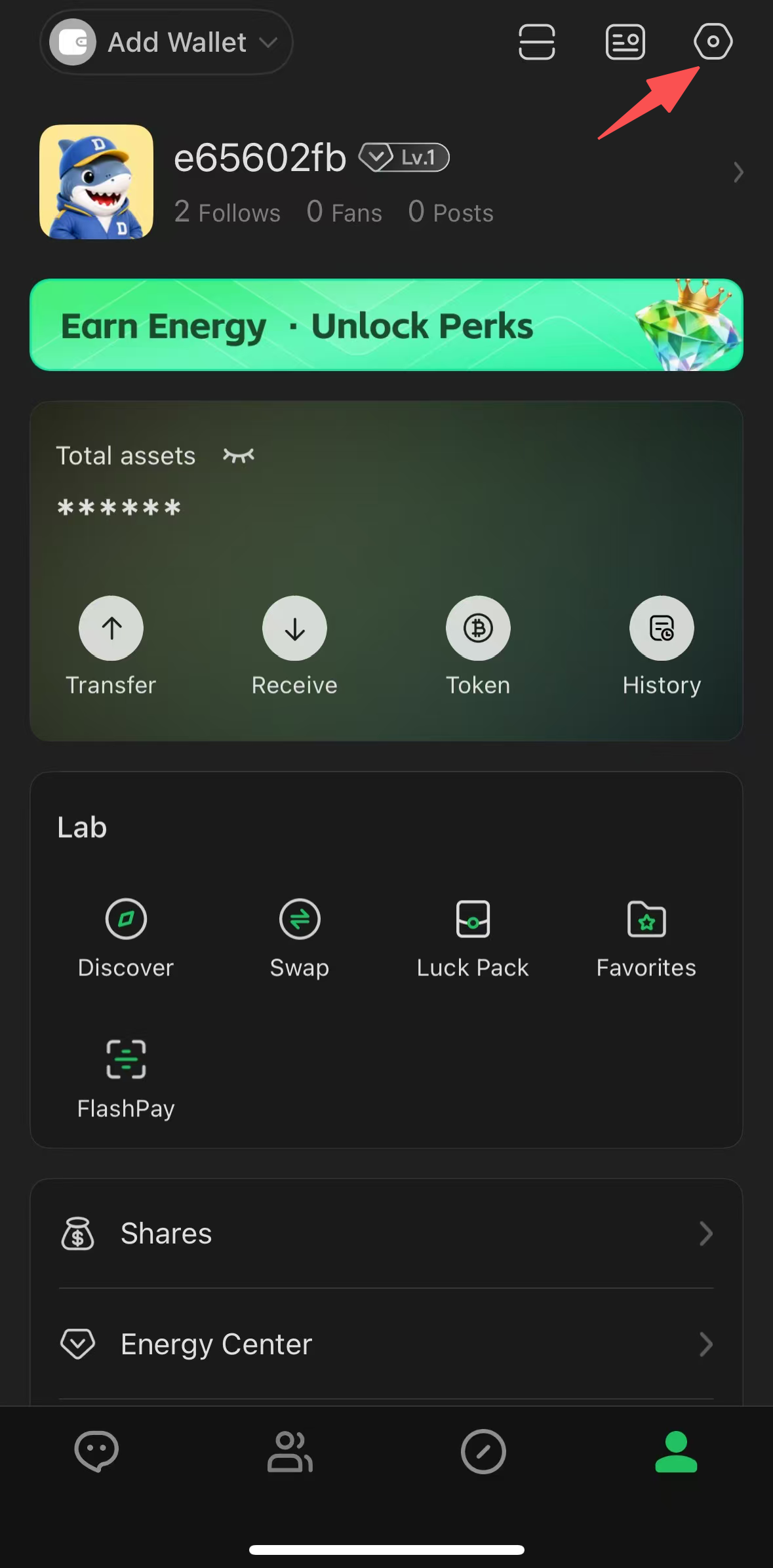
Step 1: Open My and select Settings in the upper-right corner.
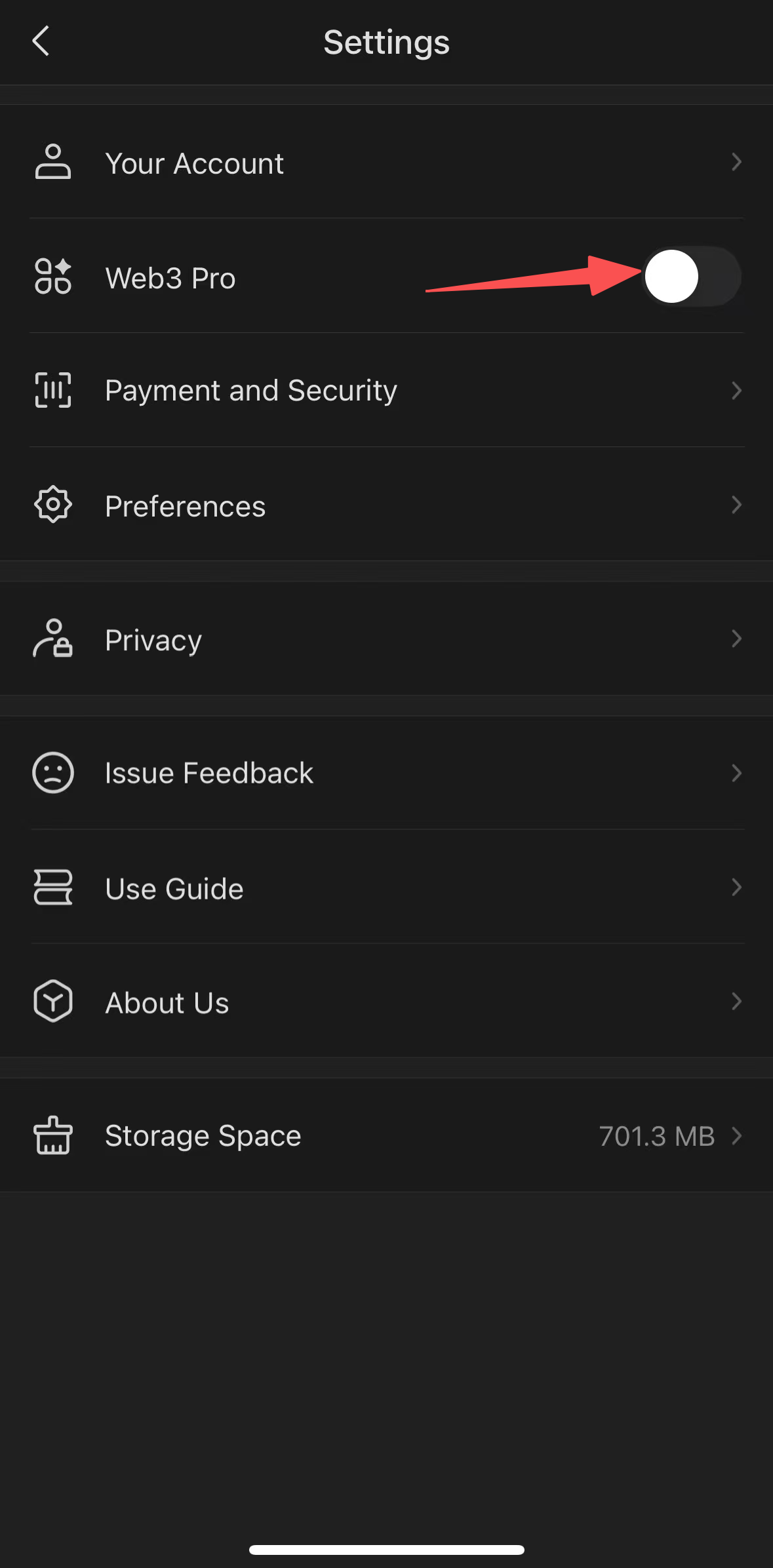
Step 2: Enable Web3 Pro on the Settings page.
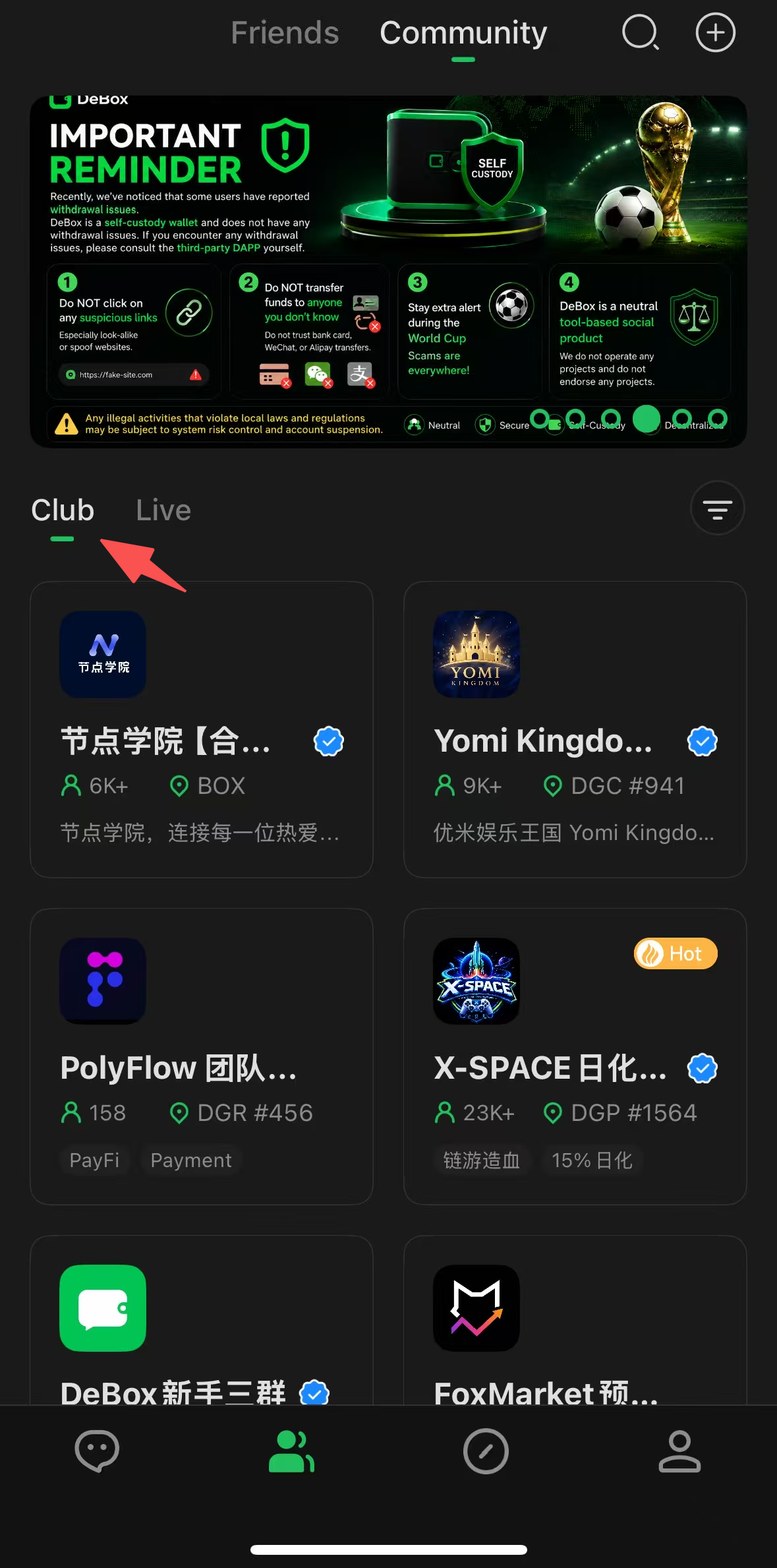
Step 3: Open Community, select the Club section, and choose a Club.
What Fun Community Tools Are Available?
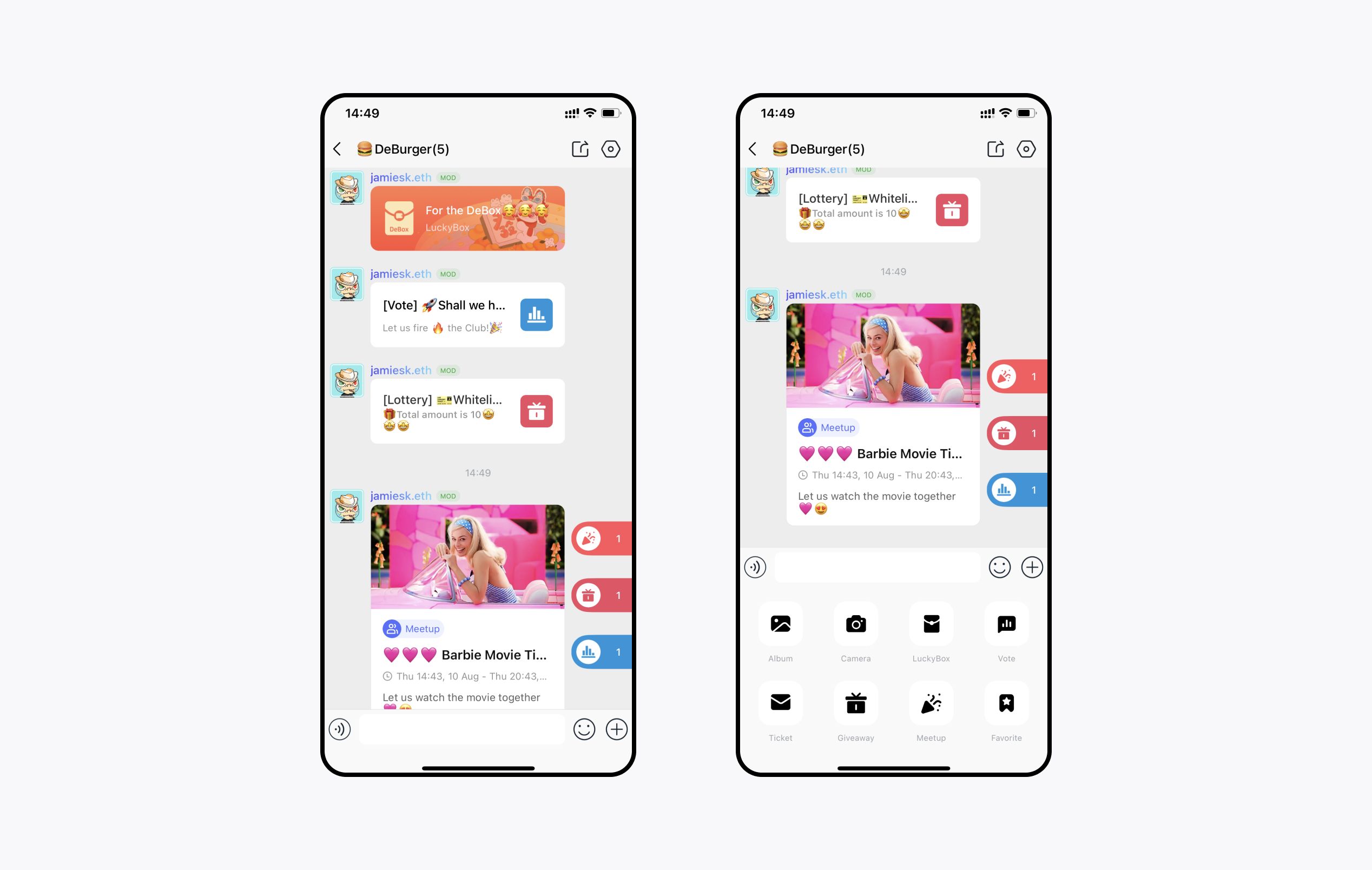
Open a group chat and select 【+】 at the bottom. Choose 【Red Packet】, 【Vote】, 【Giveaway】, or 【Meetup】 to start an activity. To join an existing activity, use its message card in the chat or the shortcut panel on the right.
What Content Can I See on the Discover Page?
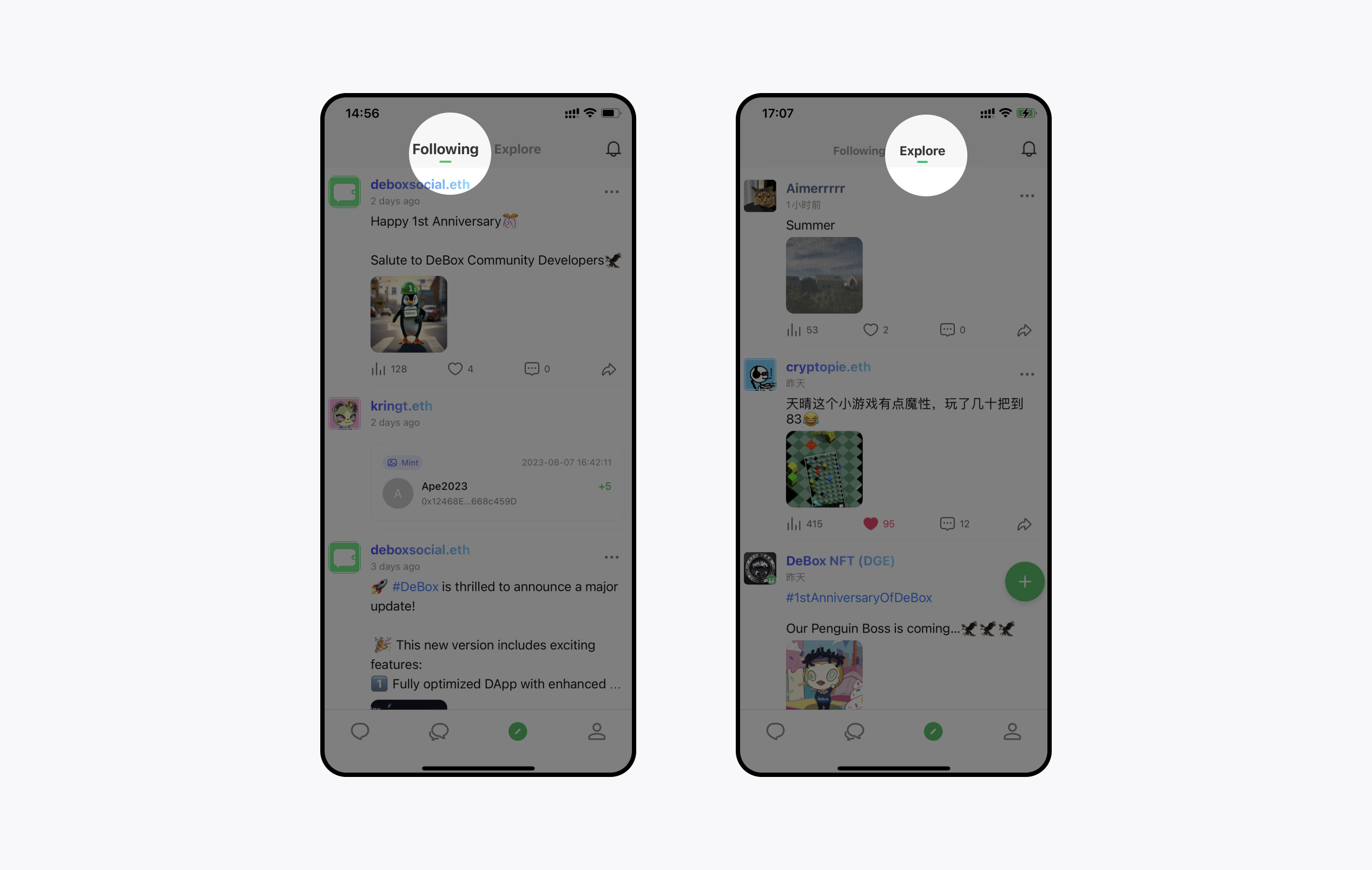
On the Discover page, you can post updates, browse updates, comment, and follow other users.
View Everyone's Updates
On the 【Discover】 page, open 【Explore】 to browse public updates. DeBox recommends updates based on your preferences.
View Updates from People You Follow
Switch from 【Explore】 to 【Following】 to view updates and on-chain activity from people you follow, including their trading activity, investment interests, and projects they participate in.